


 The Reolink Video Doorbell PoE is a handy network video doorbell with PoE power, a local web interface and support for home automation. The official Reolink mobile app, however, reports a button press with a noticeable delay – about 20 seconds in my case. That is far too long for a front door; the visitor may already be gone.
The solution is to catch the button press locally in Home Assistant and send an instant notification to the phone. Tapping the notification opens the Reolink app with video. This guide is for the Samsung Galaxy S25+ (One UI 7/8), but it applies to most Samsung phones with Google services. There is a separate guide for Huawei phones without Google services – the procedure is different there.
How it works
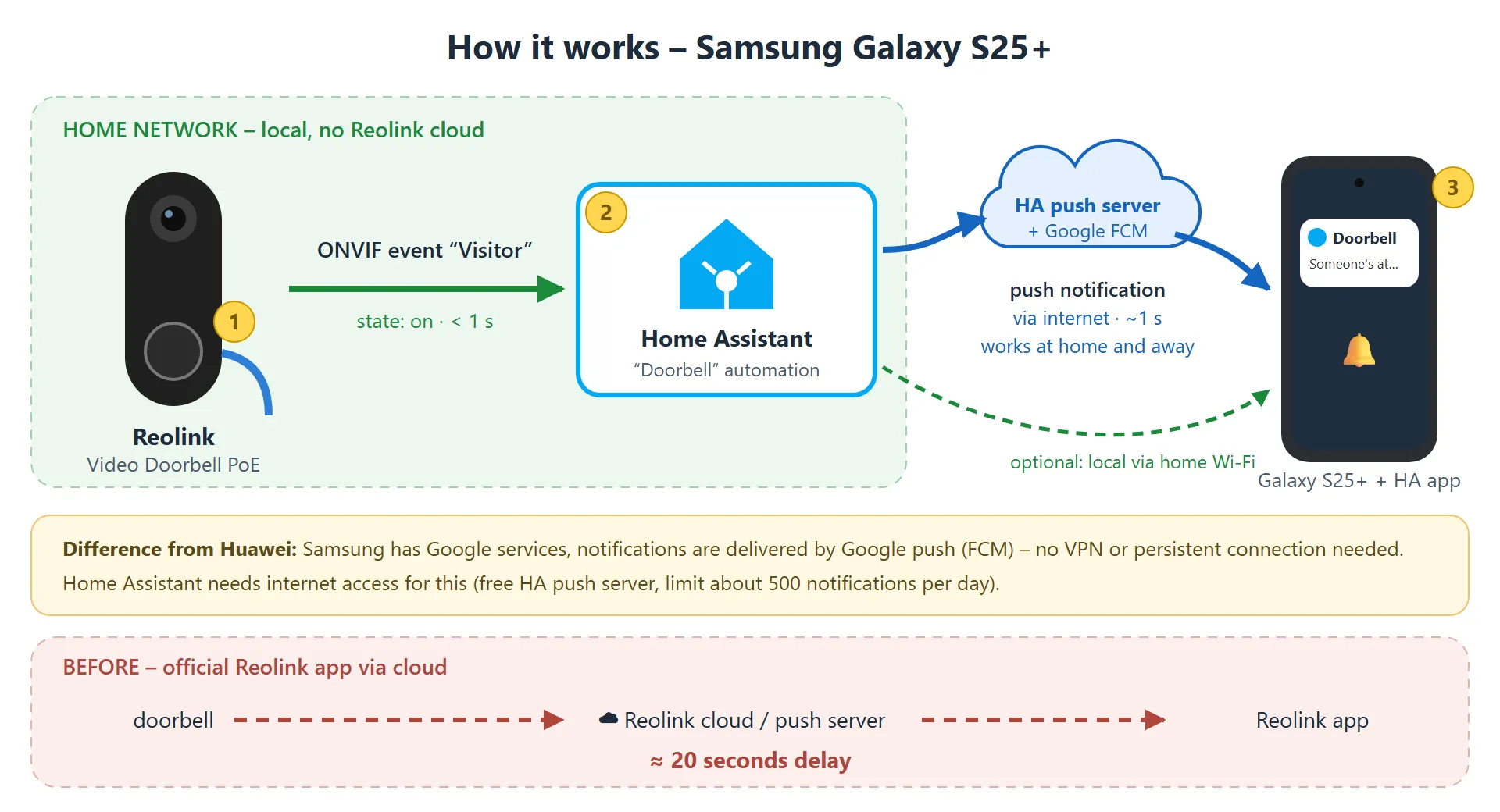
When the button is pressed, the doorbell sends a Visitor event (ONVIF protocol) in the home network. Home Assistant receives it within a second and runs an automation. The automation sends a notification via the free Home Assistant push server and Google (FCM) to the Home Assistant app on the phone. The whole thing takes about 1–2 seconds and works at home and away – no VPN and no port forwarding on the router.
Home Assistant needs internet access for this. The Home Assistant push server has a limit of about 500 notifications per day per phone, which is plenty for a doorbell.
How the notification reaches the phone: the Samsung Galaxy S25+ has Google services, so notifications go through Google push (FCM) and the persistent connection of the Home Assistant app is not needed. This applies to all phones with Google services. Huawei phones without Google services (e.g. P40 lite) cannot use Google push – there, notifications go through a persistent connection (local push) directly from your Home Assistant, over VPN away from home. There is a separate guide for them.
What you need
- Reolink Video Doorbell PoE connected to the home network and set up in the Reolink app (you know its IP address and password).
- Home Assistant in the same network (Raspberry Pi, mini PC, NAS…) with internet access.
- Samsung Galaxy S25+ with the Home Assistant and Reolink apps from Google Play.
- About 20–30 minutes.
Step 1: Fixed IP address and services on the doorbell

- In your router (DHCP settings), reserve a fixed IP address for the doorbell. If the address changed after a router restart, Home Assistant would lose the doorbell.
- Open the doorbell web interface (
https://doorbell-IP) or the Reolink app and go to Network → Advanced → Server Settings. - Make sure HTTPS, RTSP and ONVIF are enabled.
Step 2: Add the doorbell to Home Assistant
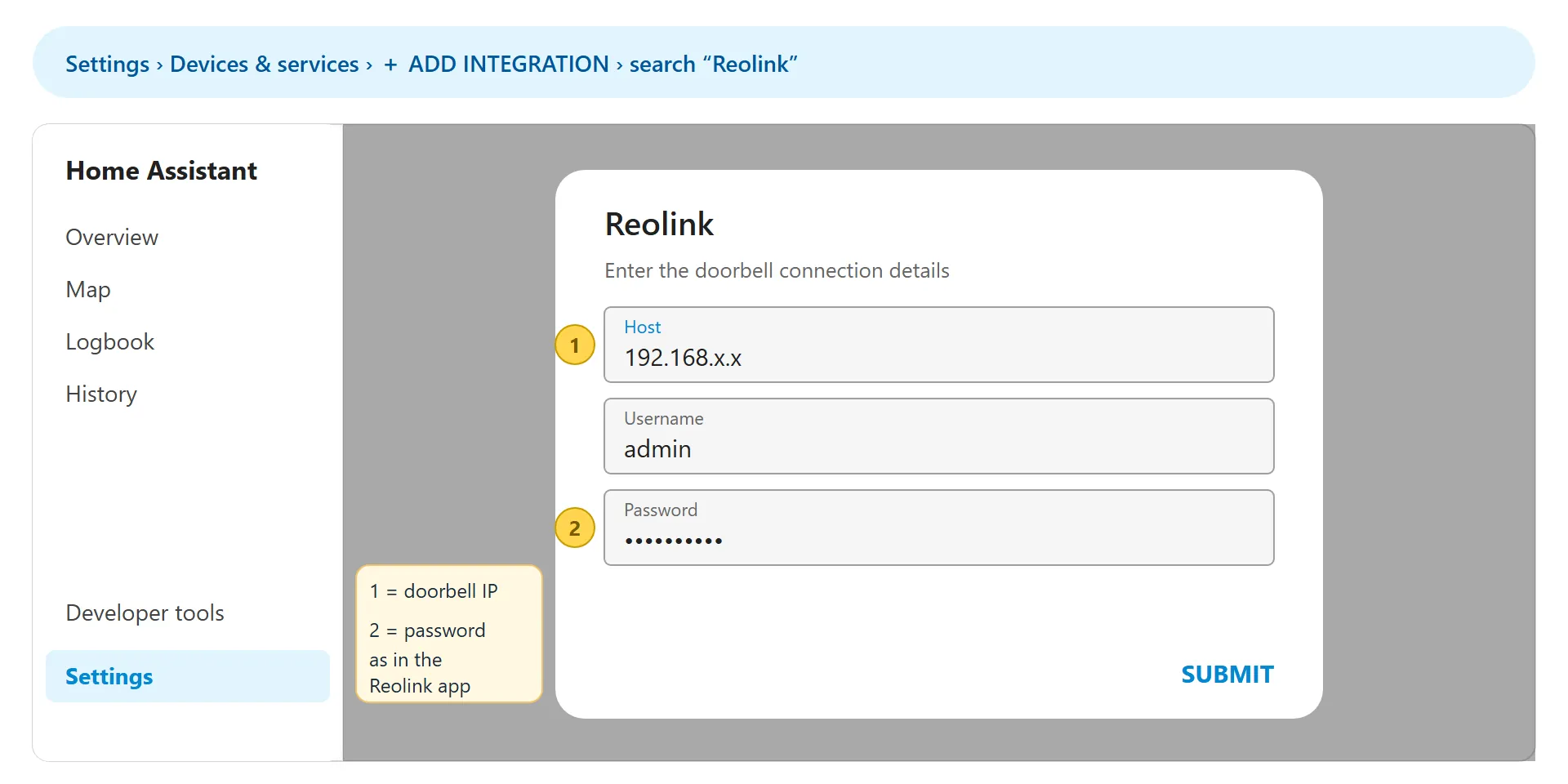
- In Home Assistant, open Settings → Devices & services.
- Click + Add integration and search for Reolink. If Home Assistant found the doorbell by itself, it is listed under Discovered.
- Enter the doorbell IP address, the username (usually
admin) and the password from the Reolink app and click Submit.
Step 3: Find the “Visitor” entity
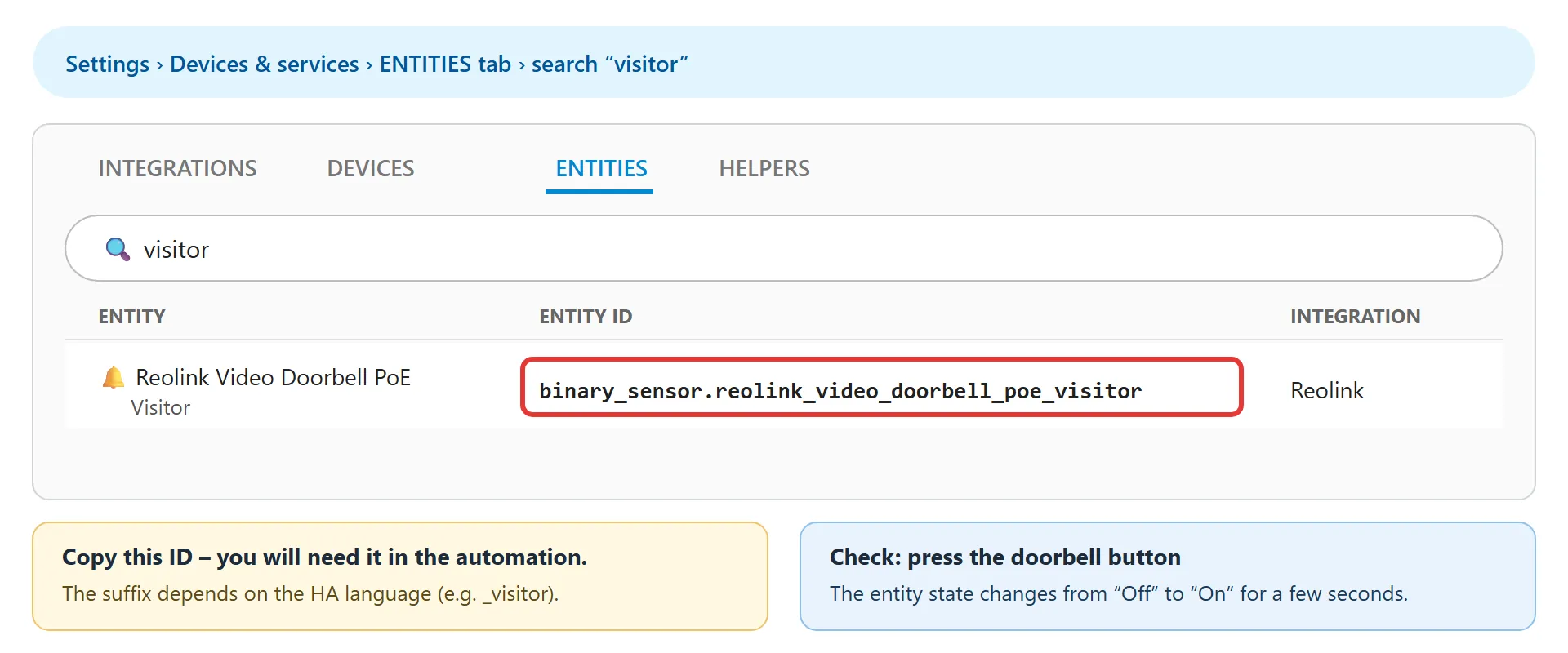
- Open Settings → Devices & services → Entities and search for visitor.
- Copy the entity ID, for example
binary_sensor.reolink_video_doorbell_poe_visitor. Yours may differ – do not copy it from this guide blindly. - Check: press the doorbell button. The entity state changes from Off to On for a few seconds.
Step 4: The Home Assistant app on the Samsung phone
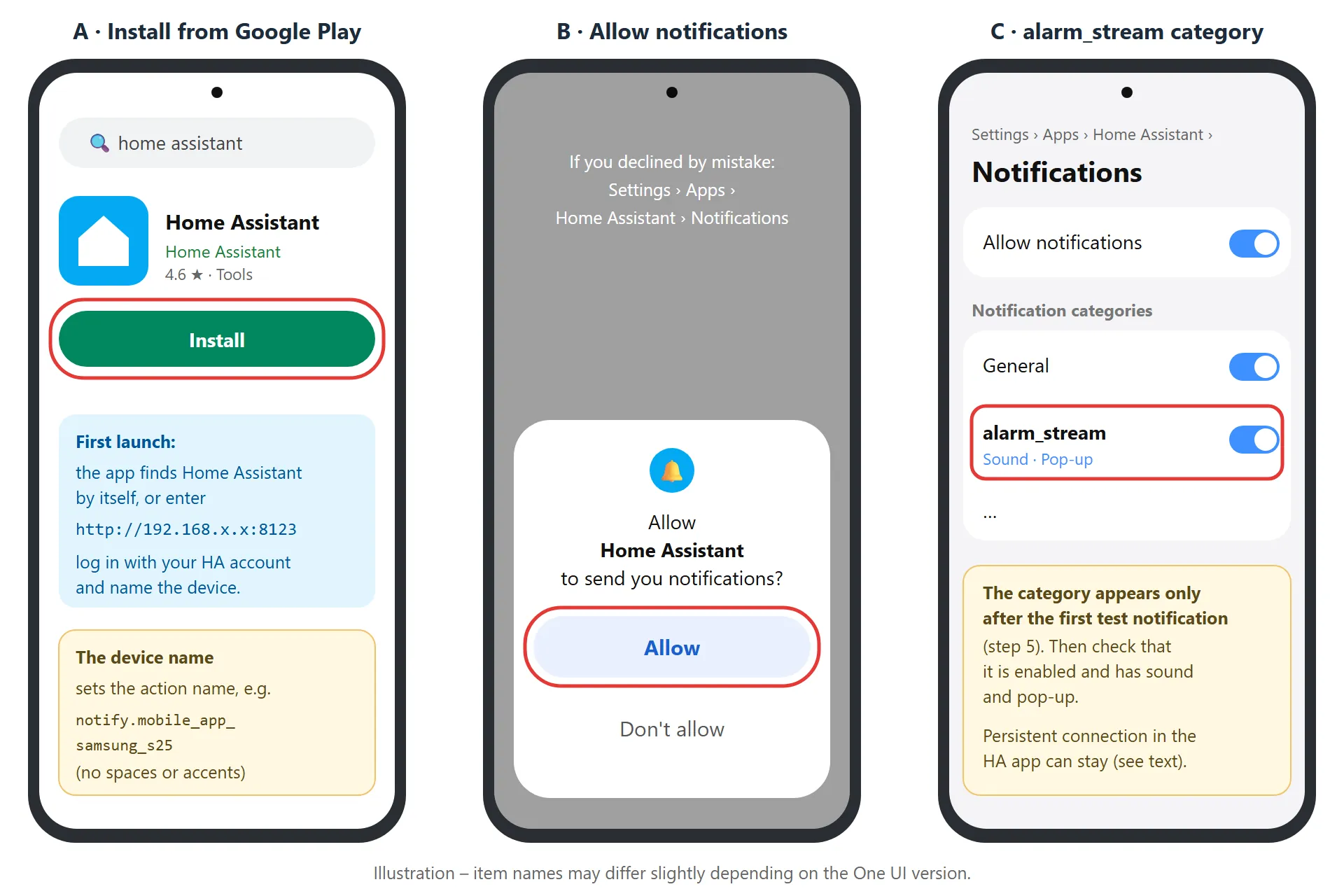
- Install the Home Assistant app (publisher Home Assistant) from Google Play (A).
- Open it. The app usually finds your Home Assistant in the network by itself; otherwise enter the address, e.g.
http://192.168.x.x:8123. Log in with your account. - During login, enter a device name, e.g. Samsung_S25. It becomes the action name
notify.mobile_app_samsung_s25. - When the phone asks whether Home Assistant may send notifications, choose Allow (B).
On a Samsung there is no need to change the Persistent connection setting in the app – Google delivers the notifications. If you want notifications at home to arrive directly, without the internet, you can set the persistent connection to Only on home Wi-Fi in Settings → Companion app → your server (you also need to enter the home Wi-Fi network name). It slightly increases battery use.
Step 5: Test notification
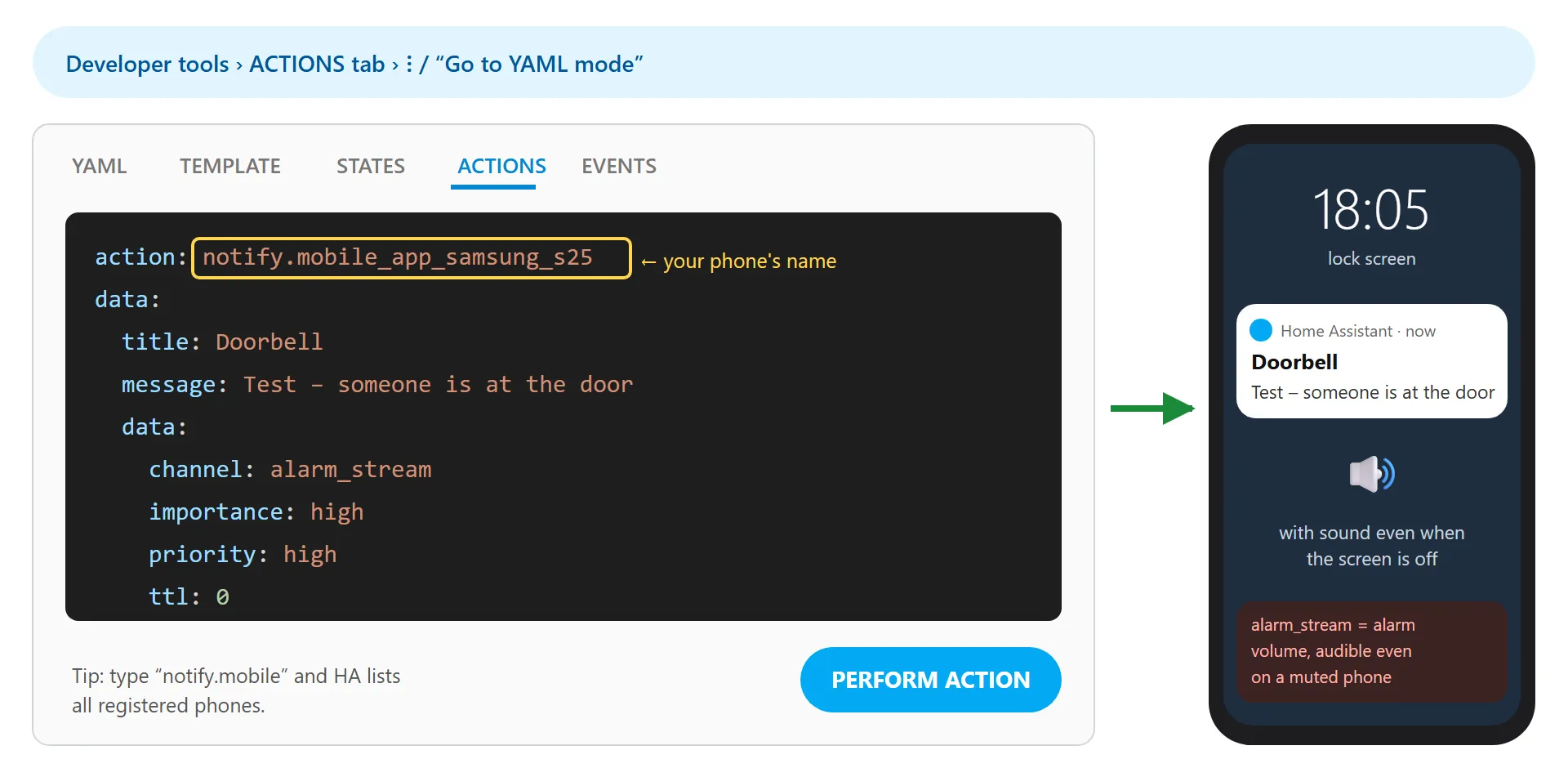
- In Home Assistant, open Developer tools → Actions and switch to YAML mode.
- Type
notify.mobile– Home Assistant lists the registered phones. Choose your Samsung.notify.mobile_app_…is an action, not an entity – so you will not find it in the entity list (Settings → Devices & services → Entities). - Paste the text below (with your phone name) and click Perform action. The phone must ring within a second.
action: notify.mobile_app_samsung_s25
data:
  title: Doorbell
  message: Test - someone is at the door
  data:
    channel: alarm_stream
    importance: high
    priority: high
    ttl: 0
The channel: alarm_stream setting plays the sound at alarm volume, so you hear the doorbell even when the phone is in silent or vibrate mode. The values priority: high and ttl: 0 tell Google to deliver the notification immediately, even to a phone in power-saving state.
After the first test notification, an alarm_stream category appears on the phone in Settings → Apps → Home Assistant → Notifications. Check that it is enabled and has sound and pop-up allowed (picture in step 4, C).
Step 6: Samsung battery settings
Samsung puts apps to sleep that you have not opened for a while. A sleeping app delivers notifications late or not at all – and you will probably not open the Home Assistant app very often. Therefore:
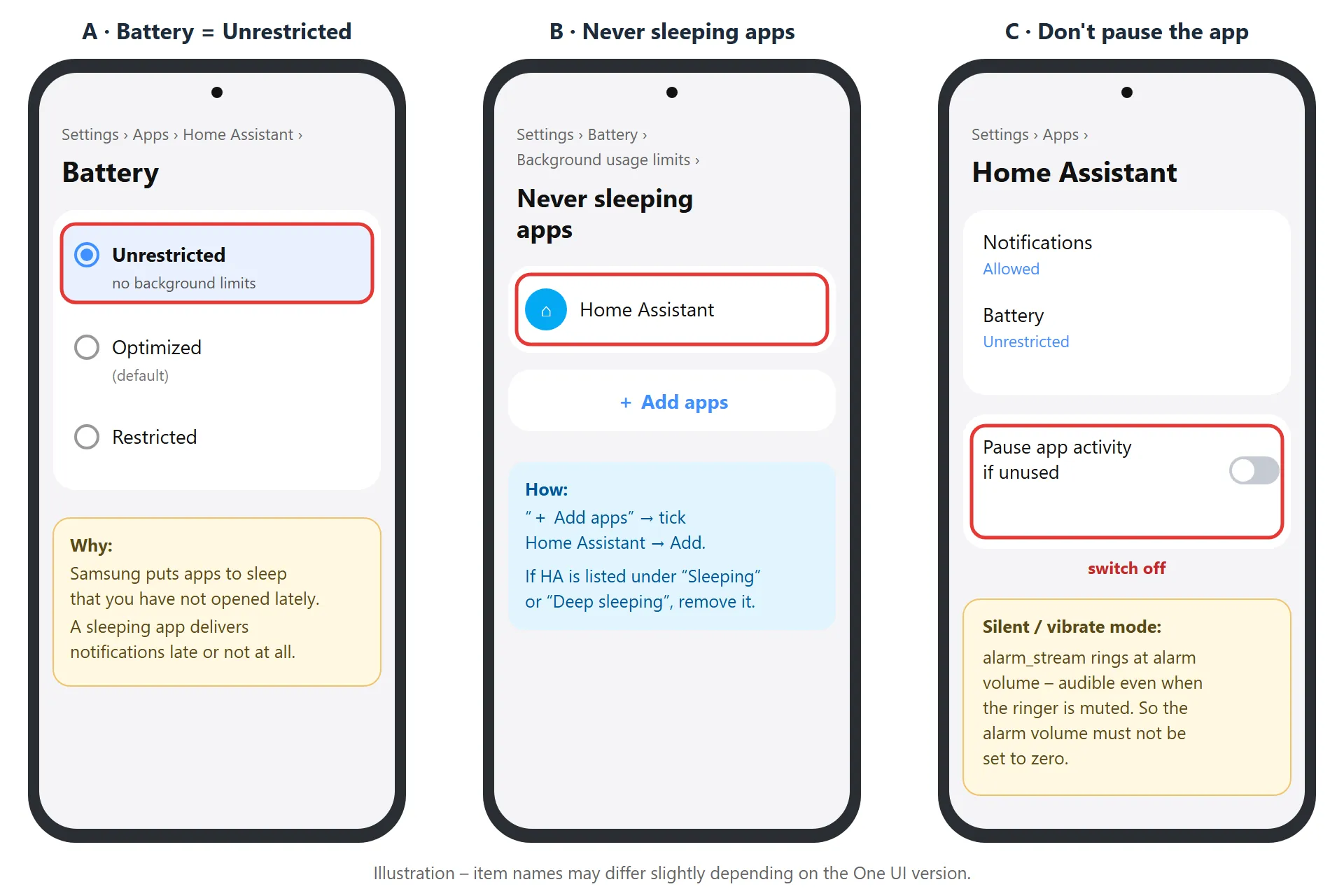
- Settings → Apps → Home Assistant → Battery → choose Unrestricted (A).
- Settings → Battery → Background usage limits → Never sleeping apps → + Add apps → tick Home Assistant (B). If it is listed under Sleeping apps or Deep sleeping apps, remove it from there.
- Settings → Apps → Home Assistant → switch off Pause app activity if unused (C).
- The alarm volume must not be set to zero – the
alarm_streamchannel rings at that volume, even in silent or vibrate mode. - Do not disturb mutes notifications by default. If the doorbell should ring even then, add Home Assistant to the exceptions in Settings → Notifications → Do not disturb → Apps.
Item names may differ slightly depending on the One UI version.
Step 7: The doorbell automation
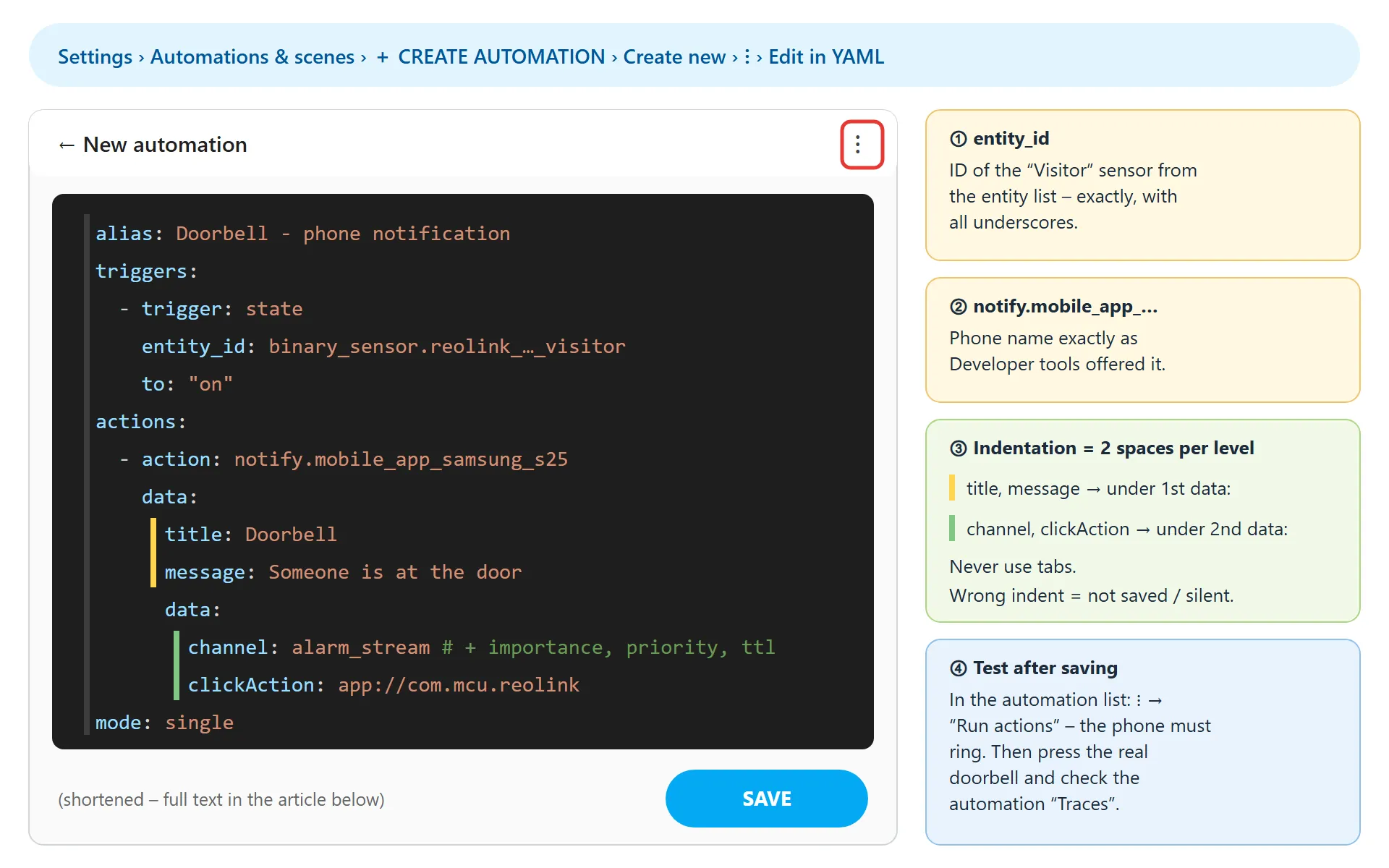
- Open Settings → Automations & scenes and click + Create automation → Create new automation.
- Click ⋮ in the top right corner and choose Edit in YAML.
- Delete the prefilled text and paste the automation below.
- Replace the entity ID from step 3 (once) and the phone name from step 5 (e.g.
notify.mobile_app_samsung_s25) – in all three places. - Click Save.
alias: Doorbell - phone notification
mode: single
triggers:
  - trigger: state
    entity_id: binary_sensor.<reolink_doorbell_visitor>
    to: "on"
actions:
  # 1. turn the screen on
  - action: notify.mobile_app_<phone>
    data:
      message: command_screen_on
  # 2. notification with sound, 3 times, 3 seconds apart
  - repeat:
      count: 3
      sequence:
        - action: notify.mobile_app_<phone>
          data:
            title: Doorbell
            message: Someone is at the door
            data:
              channel: alarm_stream
              importance: high
              priority: high
              ttl: 0
              tag: doorbell
              clickAction: app://com.mcu.reolink
        - delay: "00:00:03"
  # 3. optional: spoken message at maximum alarm volume
  - action: notify.mobile_app_<phone>
    data:
      message: TTS
      data:
        tts_text: Someone is at the door
        media_stream: alarm_stream_max
        ttl: 0
        priority: high
When the doorbell rings, the automation does three things: 1. turns the phone screen on (command_screen_on – the phone stays locked), 2. sends the notification with sound three times, 3 seconds apart – thanks to the same tag only one notification stays on the phone, but it rings every time, 3. the phone says “Someone is at the door” at maximum alarm volume (alarm_stream_max). The spoken message needs a text-to-speech engine on the phone; if you do not want it, delete the whole last block (point 3). A normal notification only gives a short “ding” and does not turn the screen on.
Watch the indentation – use spaces, not tabs. title and message go under the first data:, channel, clickAction and the rest under the second data:.
Test: press the doorbell button. If the phone does not ring, open the automation and use ⋮ → Traces to see whether it ran and where it stopped.
Step 8: Opening the video in the Reolink app

The line clickAction: app://com.mcu.reolink in the automation makes the Reolink app open with live video when you tap the notification. On a Samsung you only need the Reolink app from Google Play installed and logged in. If the phone is locked, Reolink opens after unlocking (fingerprint or face).
Troubleshooting
| Problem | Cause and solution |
|---|---|
| The Visitor entity does not change when the button is pressed | ONVIF or HTTPS is not enabled on the doorbell (step 1). Try reloading the Reolink integration in HA. |
notify.mobile_app_… is not in the action list |
The phone app is not logged in to HA. Log in again (step 4). |
| The test notification does not arrive at all | Home Assistant has no internet access, or notifications for Home Assistant are disabled on the phone. Once the daily limit (about 500) is exceeded, the push server does not deliver more notifications that day. |
| The notification only gives a short “ding” and the screen stays off | That is how a normal notification behaves. Use the automation from step 7 – it turns the screen on, rings three times and speaks a message. You can also choose a longer sound in the alarm_stream category. |
| The notification arrives, but silently | channel: alarm_stream is missing, the indentation is wrong, the alarm_stream category is muted on the phone, or the alarm volume is zero. |
| The notification is sometimes delayed by tens of seconds | Samsung put the app to sleep – check step 6 (Unrestricted, Never sleeping). Make sure the YAML contains priority: high and ttl: 0. |
| Tapping the notification does not open Reolink | Check the line clickAction: app://com.mcu.reolink and that Reolink is installed from Google Play. |
Security
Neither Home Assistant nor the doorbell needs to be exposed to the internet – Home Assistant only sends the notification out to the push server; no ports are opened on the router. The notification text passes through the Home Assistant push server and Google, so do not put sensitive data in it. If you also want remote access to Home Assistant, use a VPN (e.g. WireGuard) or Home Assistant Cloud, not port forwarding.
Result
After the doorbell button is pressed, the Galaxy S25+ rings within 1–2 seconds – at home and away, even with the screen off and in silent mode. Tapping the notification opens the Reolink app with video, and I can talk to the visitor.
Sources
Home Assistant – Reolink integration
Home Assistant Companion – Android notification options
Home Assistant Companion – Critical notifications (alarm_stream)
Home Assistant Companion – Local Push notifications
Reolink – Which Reolink Products Support CGI/RTSP/ONVIF